
TaskbarNest
Organize your apps in folders, right in the Windows 11 taskbar.
Coming soonFree. Windows 11, 64-bit. No account and no administrator rights needed.
How to use TaskbarNest
Install
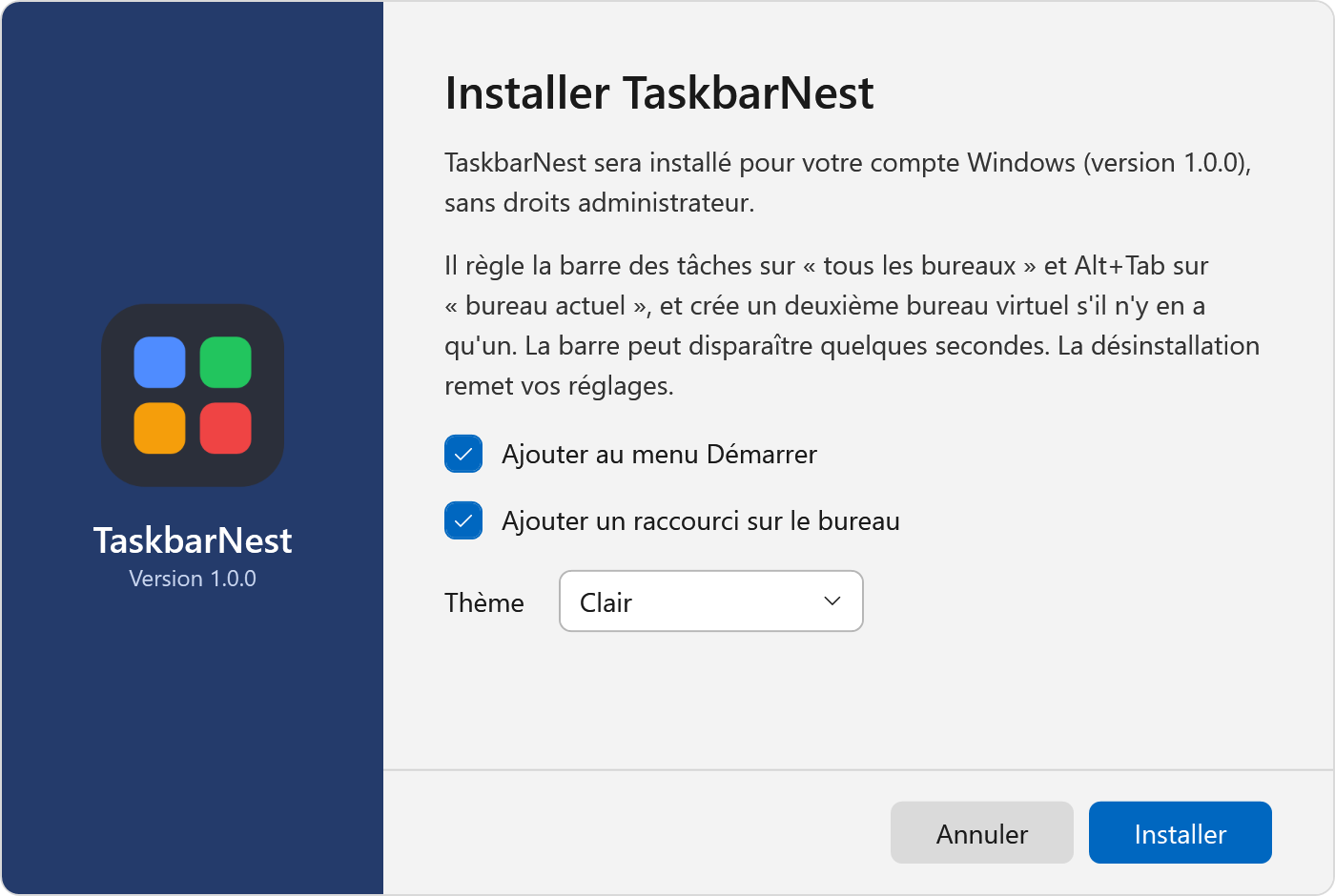
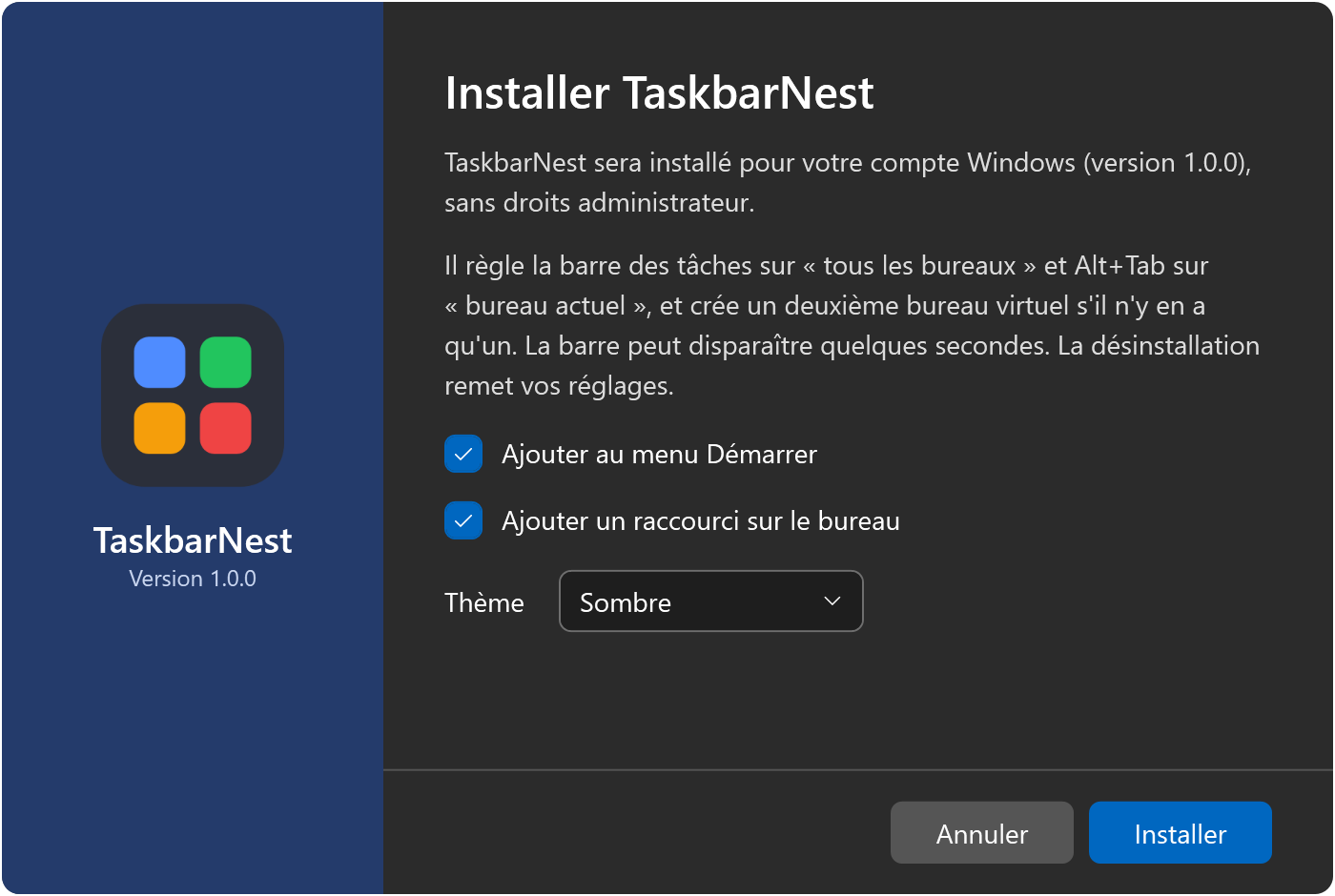
Open the downloaded file, choose the theme, then click Install.
TaskbarNest has no paid code signature, so Windows may show “Windows protected your PC”: click More info, then Run anyway.
Add apps
- Drag a taskbar icon above the folder, then drop it in the Drop here bubble.
- A desktop shortcut can be dropped right on the folder.
- Drop an app above another one to create a folder with both.
Open an app
Point at the folder, then click the app.
An open app kept in a folder adds no button to the taskbar: a blue line appears under its icon. Click it to bring its window back. You can turn this off in the settings.
Create, move and delete folders
- Shift + right-click an empty area of the taskbar, or right-click a folder: Create a folder.
- Hold the left mouse button on a folder to move it along the taskbar.
- Right-click a folder: rename or delete. Your apps are never uninstalled.
Customize
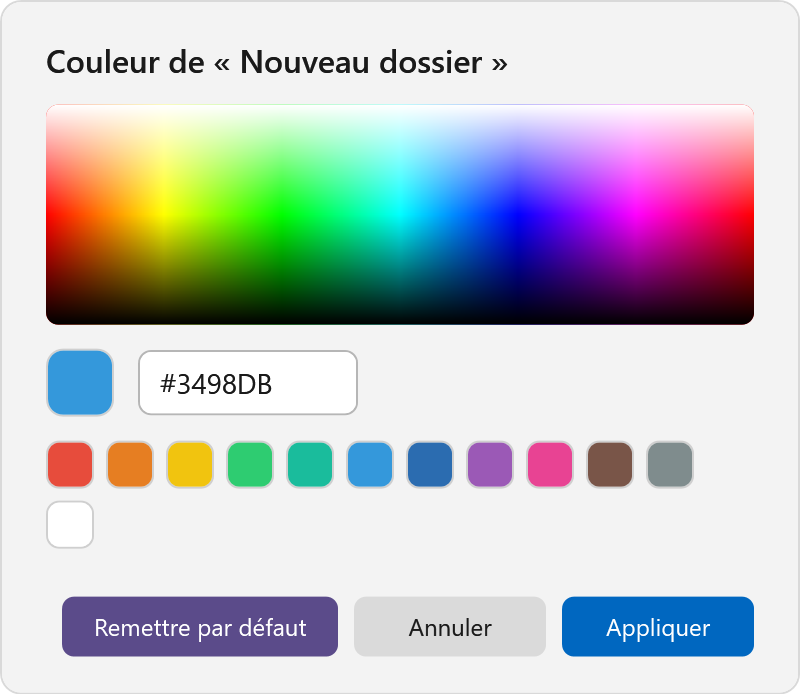
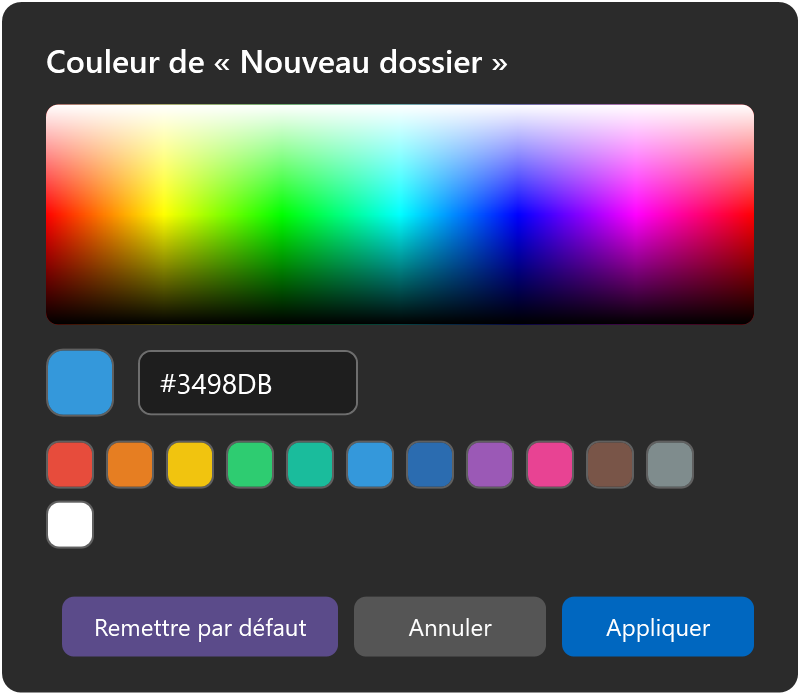
- Click the folder name to change it, and the small square next to it to choose its color.
- Right-click, Folder customization: grid or list, with or without app names.
- TaskbarNest settings: light or dark theme, transparency, 13 languages.
Right-click an app in the folder
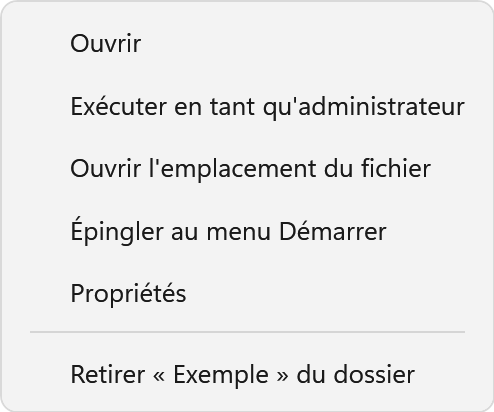
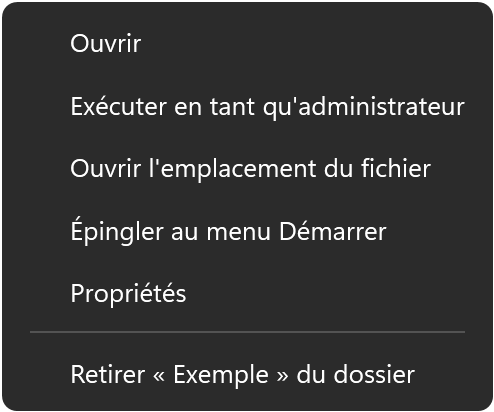
- Right-click: open, run as administrator, open file location, pin to Start, properties, remove from folder.
- Shift + right-click: the full Windows menu.
- Drag an app inside the menu to change the order, or out of the menu to remove it from the folder.
Back up, update, uninstall
- TaskbarNest settings: export your folders to a file and import them on another PC.
- A notification announces new versions. Check Update automatically to have nothing to do.
- To uninstall: hidden icons near the clock, right-click TaskbarNest, Uninstall TaskbarNest…
What TaskbarNest changes in Windows
In Settings > System > Multitasking > Desktops:
- Taskbar: it shows the windows of all virtual desktops.
- Alt+Tab: it only shows the windows of the current desktop (the usual Windows setting).
- Second virtual desktop: created if there is only one. TaskbarNest keeps its invisible windows there.
- Explorer: it may restart once to apply these settings. The taskbar disappears for a few seconds.
If you use a single desktop, you will see no difference, except this empty second desktop in Win + Tab.
If you use several, the windows of all your desktops will be in the taskbar.
Uninstalling restores your original settings.
Your folders and settings stay on your PC. TaskbarNest only contacts GitHub to check for updates.